
Draft. This manual is new and still growing. If something here does not match what you see in the software, the software is right — tell us and we will fix the page.
Operations
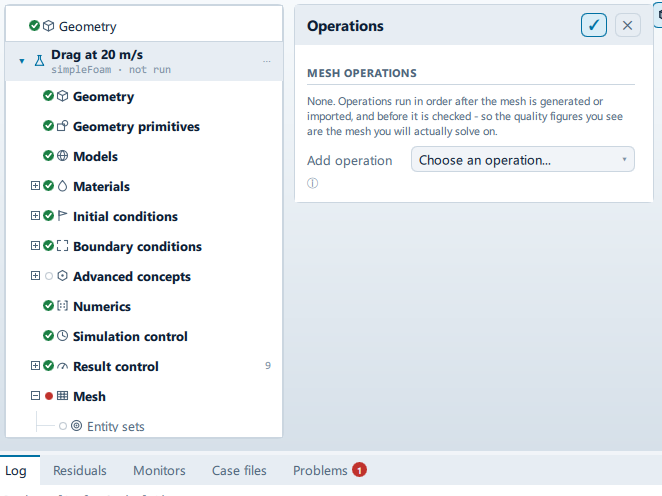
Where it is
Setup tree: Mesh > Operations
Controls
Mesh operations
Add operation
- Control: choice (
ComboRow) - Default:
Choose an operation... - Options:
Choose an operation...,Renumber for bandwidth,Scale, move or rotate,Mirror about a plane,Refine cells,Extrude a patch,Rename or merge patches,Keep only part of the mesh,Merge in another mesh,Stitch two patches together,Convert to polyhedra,Collapse short edges,Combine coplanar faces,Rotate onto an axis,Zip up open cells,Split the boundary by angle(fromCaseState.meshOperationKinds)
Added at the end of the pipeline. Reorder with the arrows.
Conditional and repeated groups
Per item in CaseState.meshOperations
repeated once for every entry in CaseState.meshOperations
↑
- Control: action (
ToolButton2) - Enabled when:
opRow.index > 0
↓
- Control: action (
ToolButton2) - Enabled when:
opRow.index < CaseState.meshOperations.count - 1
On
Label changes with the case; the source gives these forms: On, Off.
- Control: action (
ToolButton2)
✕
- Control: action (
ToolButton2)
transformPoints
selected for: transformPoints
Scale
- Control: value (
ValueField) - Default:
1.0 - Value modes: none (plain entry)
A factor applied to every coordinate. Leave at 1 to move instead of scale - the two are separate invocations, because doing both at once applies them in an order nobody expects.
Move X
- Control: value (
ValueField) - Unit: m
- Default:
0.0 - Value modes: none (plain entry)
Move Y
- Control: value (
ValueField) - Unit: m
- Default:
0.0 - Value modes: none (plain entry)
Move Z
- Control: value (
ValueField) - Unit: m
- Default:
0.0 - Value modes: none (plain entry)
rotateMesh
selected for: rotateMesh
From axis
- Control: choice (
ComboRow) - Default:
z - Options:
x,-x,y,-y,z,-z(from ``parent.axesin this panel)
To axis
- Control: choice (
ComboRow) - Default:
x - Options:
x,-x,y,-y,z,-z(from ``parent.axesin this panel)
Rotates the mesh so the first direction ends up pointing along the second.
mirrorMesh
selected for: mirrorMesh
Normal X
- Control: value (
ValueField) - Default:
0.0 - Value modes: none (plain entry)
- Shown when:
planeFrom.usesPrimitive
Normal Y
- Control: value (
ValueField) - Default:
1.0 - Value modes: none (plain entry)
- Shown when:
planeFrom.usesPrimitive
Normal Z
- Control: value (
ValueField) - Default:
0.0 - Value modes: none (plain entry)
- Shown when:
planeFrom.usesPrimitive
Point X
- Control: value (
ValueField) - Default:
0.0 - Value modes: none (plain entry)
- Shown when:
planeFrom.usesPrimitive
Point Y
- Control: value (
ValueField) - Default:
0.0 - Value modes: none (plain entry)
- Shown when:
planeFrom.usesPrimitive
Point Z
- Control: value (
ValueField) - Default:
0.0 - Value modes: none (plain entry)
- Shown when:
planeFrom.usesPrimitive
refineMesh
selected for: refineMesh
Cell set
- Control: value (
ValueField) - Default: empty
- Value modes: none (plain entry)
Leave empty to refine every cell, which multiplies the cell count by eight. Name a cellSet to refine only that.
Directions
- Control: choice (
ComboRow) - Default:
xyz - Options:
xyz,xy,xz,yz,x,y,z
Which directions get cut. All three multiplies the cell count by eight; one direction doubles it, which is what a wake or a boundary layer usually wants.
extrudeMesh
selected for: extrudeMesh
Mode
- Control: choice (
ComboRow) - Default:
Linear, along the patch normal - Options:
Linear, along the patch normal,Wedge (axisymmetric),Rotate about an axis
Linear one cell thick is a 2D case. Wedge is how axisymmetry is done - there is no 2D solver, so a wedge of a few degrees with wedge patches stands in for one.
Source patch
- Control: choice (
ComboRow) - Default: empty
The surface that gets swept into a volume.
Thickness
- Control: value (
ValueField) - Unit: m
- Default:
0.01 - Value modes: none (plain entry)
- Shown when:
op && String(op.extrudeMode).indexOf("Linear") === 0
Angle
- Control: value (
ValueField) - Unit: deg
- Default:
5.0 - Value modes: none (plain entry)
- Shown when:
op && String(op.extrudeMode).indexOf("Linear") !== 0
Five degrees is the usual wedge. It has to be small enough that one cell across the wedge is a reasonable model.
Layers
- Control: value (
ValueField) - Default:
1 - Value modes: none (plain entry)
- Shown when:
op && String(op.extrudeMode).indexOf("Wedge") !== 0
One layer is a 2D case. More makes it genuinely three dimensional.
Axis X
- Control: value (
ValueField) - Default:
0.0 - Value modes: none (plain entry)
- Shown when:
op && String(op.extrudeMode).indexOf("Linear") !== 0 && !extrudeAxisFrom.usesPrimitive
Axis Y
- Control: value (
ValueField) - Default:
0.0 - Value modes: none (plain entry)
- Shown when:
op && String(op.extrudeMode).indexOf("Linear") !== 0 && !extrudeAxisFrom.usesPrimitive
Axis Z
- Control: value (
ValueField) - Default:
1.0 - Value modes: none (plain entry)
- Shown when:
op && String(op.extrudeMode).indexOf("Linear") !== 0 && !extrudeAxisFrom.usesPrimitive
createPatch
selected for: createPatch
New patch
- Control: value (
ValueField) - Default: empty
- Value modes: none (plain entry)
Type
- Control: choice (
ComboRow) - Default:
wall - Options:
wall,patch,symmetry,empty,wedge,cyclic
wall is what makes wall functions available; empty is what makes a mesh two dimensional.
subsetMesh
selected for: subsetMesh
Cell set
- Control: value (
ValueField) - Default: empty
- Value modes: none (plain entry)
The set to keep. Everything outside it is discarded, so this is not reversible within the run.
mergeMeshes
selected for: mergeMeshes
Other case
- Control: value (
ValueField) - Default: empty
- Value modes: none (plain entry)
Path to a case directory holding the mesh to add. The two are placed side by side, not connected - add a Stitch afterwards to join them.
stitchMesh
selected for: stitchMesh
Master patch
- Control: choice (
ComboRow) - Default: empty
Slave patch
- Control: choice (
ComboRow) - Default: empty
The two become an internal boundary, which is what turns two merged meshes into one connected domain.
polyDualMesh / autoPatch / combinePatchFaces
selected for: polyDualMesh, autoPatch, combinePatchFaces
Feature angle
- Control: value (
ValueField) - Unit: deg
- Default:
45.0 - Value modes: none (plain entry)
Surfaces that turn by more than this are treated as separate features.
collapseEdges
selected for: collapseEdges
Minimum edge
- Control: value (
ValueField) - Unit: m
- Default:
1e-5 - Value modes: none (plain entry)
Edges shorter than this are collapsed. Set it well below the base cell size or the mesh loses real features.
Problems reported against this step
The application reports no problems against this step.
… marks a value the application computes at run time, so the source carries no fixed text for it.